

More Troubleshooting Monitors With Michael

Repairing arcade monitors relies heavily on your ability to identify where the problem resides. Being able to tell where on a chassis the problem originates from will greatly increase your chances for a successful repair. In this post, we once again visit with our resident monitor repair guy Michael to talk about how to identify and repair some common monitor issues.
More Troubleshooting Monitors With Michael (Part One)
More Troubleshooting Monitors With Michael (Part Two)

Most of the questions we received through the website are related to problems with arcade monitors. Since the topic of monitors is so prevalent, we thought we would once again get together with Michael to discuss some more monitor troubleshooting techniques.

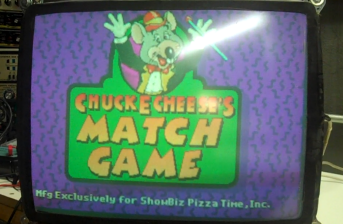
In the picture above we have a horizontally mounted monitor that has what appears to be horizontal lines located in the top half of the screen. It is important to note what direction the lines are running as this will help us determine what section of the chassis we need to focus on. Even though you might think that this problem is located in the horizontal section of the chassis, it is actually related to the vertical section.
Side Note: There is a common misconception that horizontally mounted and vertically mounted monitors are different, however, they are actually the same monitor. The location of the mounting rails and the way the picture is displayed are the only differences between them. The anode (located underneath the suction cup) will always indicated the top of the monitor.
When you have these type of lines running along your screen, these are typically caused by a bad capacitor in the respective section of your chassis. There are many reasons why capacitors go bad. For instance, many electronics manufacturers use cheap capacitors to cut production costs. Also, dust can act like a big blanket on top of your board heating up components and causing them to fail. This is one reason why making sure your game is sufficiently cooled is so important. Please see our post on Installing A Fan In An Arcade Cabinet for more information on cooling.
Lets say we didn’t know that this problem was related to a capacitor, we could always start by identifying what is working with our monitor. Since we are getting a picture, we know that our flyback, anode and tube are probably good and that we are getting power to the monitor. Our colors look pretty accurate so the connections from the PCB and the neck board to the chassis are probably good as well as the neck board itself. This pretty much leaves us with just the chassis. This process-of-elimination technique works very well for troubleshooting the majority of parts in an arcade cabinet.
Now that we’ve identified the problem, we can now begin to track it down on our chassis. As we said before, this problem is more than likely caused by a bad capacitor in the vertical section of our monitor. Some monitors might have this section labeled on the chassis while others will not. A good way to determine the location of the vertical section is to trace down the yoke wires coming off of the tube to the chassis. A green or yellow yoke wire from the tube usually leads to the vertical section of the chassis. Conversely, a blue or red yoke wire usually leads to the horizontal section. These sections have a location number that corresponds with the parts in that section (i.e. the vertical section might be IC600 with the capacitors in the section being number C610). This will help you in determining which parts go with which section.
When we’ve located the vertical section, we can now begin to look at the parts associated with that section. On this particular monitor there were two capacitors located in this section. Using an ESR (Equivalent Series Resistance) meter we were able to determine that the 100μf (microfarad) capacitor was bad while it was in circuit. You can also use a multimeter with a capacitance tester to check your capacitors but you must take them out of circuit (i.e. out of the board) to get an accurate reading.
Something we covered in our post on Installing A Cap Kit is the importance of replacing a cap with another cap of the exact same microfarad and in the exact same polarity position. Also remember that the voltage of the new cap does not have to match the voltage of the old cap. As long as the voltage is greater than or equal to the original cap you should be fine. Another reading you should consider when replacing a capacitor is the degrees. The degrees of a capacitor indicates what frequencies the capacitor is rated for. We recommend using 105 degree capacitors as they can handle most of the frequencies used in arcade monitors and power supplies.
Once we replaced the cap on this particular monitor, our picture was as good as new…
Remember you can always install an entire cap kit, however, these kits usually do not contain a replacement cap for every cap on the monitor chassis. Cap kits are usually comprised of capacitors that have a high failure risk. As such, your cap kit might not contain the capacitor you need to solve your particular problem. If you install a cap kit and continue to have the same problem, make sure you check some of the caps that you didn’t replace.
We talked a little bit about the thin horizontal line monitor problem in our original Troubleshooting Monitors With Michael post but thought we would revisit this topic for a moment. Should you have a monitor with this problem, check the vertical IC (Integrated Circuit) chip to see if it is good and if it is getting power. You can check it with a standard multimeter. You can try refreshing the solder around the chip but if that doesn’t work we recommend just replacing the chip altogether.
Learning how to identify problems with arcade monitors and being able to locate the source can save you a lot of time and trouble. With these techniques you should be able to narrow down the scope of your repair to just the trouble spots that are causing your particular issue. Good luck in the future with all of your arcade monitor repairs and if you have any questions please feel free to post them in the comments section below.




I just bought your DVD, and I am rather impatient and have a question about my Centipede monitor. The screen is not the full width of the monitor, sort of scrunched in the vertical direction. I can not find any knobs to adjust. Any ideas? Thanks, Justin
Justin,
First off, we would like to thank you for buying our DVD. It should be on it’s way to you by the time we post this response. Getting to your problem, we would highly recommend checking out our video on Adjusting An Arcade Monitor. If you cannot find the knobs that we show in that video then check out the video we will be posting with episode 2 of our Q&A podcast that will show you how to adjust some monitors that don’t have knob style potentiometers. Look for it to be posted on our website soon.
If you try both these videos but still have the issue, you might need to replace some of the disc type capacitors on your monitor chassis. You can usually buy kits of these from Bob Roberts fairly cheap. Thank you for your question and keep us posted on your repair progress.
i bought a tekken 2 game and when i plug it in,I can hear it run(like a humming sound)but no picture or sound …no light or anything
Hello,
Thanks a lot for posting these videos! They are great! You mention that we can e-mail you with questions, is this form I am filling you what you are referring to me e-mailing you, or do you have an e-mail address?
Either way, I have a Sega/Gremlin Frogger cocktail game that I am putting a 60-in-1 board in. The game is having monitor issues. Somehow the colors are not showing up correctly and the graphics are not sharp/pixels missing in the “menu” screen of the multi-game. Also, ONLY in the menu screen, I get weird vertical white lines where it should be black. I can’t seem to dial in the correct colors (i.e. – Pinky always stays white in Ms. Pac-man and I can’t get the logs in Frogger to turn a brown color). The 60-in-1 board works fine if I hook it up to a computer monitor via the VGA port.
You can see a video link of what I am describing here:
http://smg.photobucket.com/albums/v379/fzr600/?action=view¤t=MVI_6766.flv
Thanks!
Brad
Jack,
Sounds like you might be having some power supply issues. We recommend checking out our post on Checking And Replacing A Power Supply for more information. If you’re power supply is working properly then you might have a board issue. If you suspect the board, you can either get a new one or send it to us for testing. We offer a free JAMMA board testing service but you do have to pay shipping both ways.
If you are just starting out fixing arcade games then you might see our posts on Basic Troubleshooting Of An Arcade Game and Your First Arcade Toolbox to get you familiar with the processes and tools that go along with repairing an arcade game.
We have also featured your question on episode 4 of our Q&A podcast. Please listen to it for more of our thoughts on your issue. Thank you for your question and good luck with your repair.
Brad,
Sounds like you might be having some problems with the red portion of your arcade monitor. You could try adjusting the red cutoff and red drive potentiometers to see if that helps your problem. Also, we have had strange problems working with cocktail cabinets on concrete floors. In our shop, we typically get really crazy colors unless we rotate the cocktail cabinet in just the right direction. While this might be a long shot it’s still something you might want to try.
We have also featured your question on episode 4 of our Q&A podcast. Please listen to it for more of our thoughts on your issue. Thank you for your question and good luck troubleshooting this issue.
I just got a Golden Tee Fore updated to Golden Tee Complete. Once i put the board and drive back in I had to adjust the monitor. I cant seem to get it adjusted to stop showing a double picture. Is it the monitor or am i looking in the wrong area? What do you think i should do?
Hello, i bought a new nba jam tournament edition arcade in 1995 or so and it was workin fine but 1 day the monitor went out like black screen, well i called my friend to see if he could fixed it and he did. well b4 that tha screen was center correctly and i could see all the names on the characters and time but after my friend fixed tha black screen now i don’t see the names or the power bar on top
on the screen and it looks different like it’s not centered correctly and i have tryed everything to get it right and i fooled with the controls behide the monitor as well. do you know what the problem is and is it fixable?
i also went into the menu where you can check the pattern settings
to ajust the screen but that doesn’t help any and this is the original monitor from the original cabinet.
i hope to hear from u and thanks!
Mike
Hello it’s Mike again, i checked my other arcade game and it’s another midway game and i went in to the pattern settings in the option menu and i saw that it was center correctly and all four
corners had a red and green lines on each side from top to bottom
and my nba jam isn’t set like that and that’s what i was talkin about on my last message.
do u know how to set it back to those settings? i have tryed everything and messed with the controls on the back but if i’m
missing something then please let me know.
thanks again!
Mike
Kyle,
Apparently Golden Tee Fore requires a standard resolution arcade monitor while Golden Tee Complete requires a medium resolution arcade monitor. This is why you see the double image. It could be that your monitor is switchable meaning that it supports both standard and medium resolutions. If it is not, however, you will need to get a medium resolution monitor for the game to play correctly.
We have also featured your question on episode 6 of our Q&A podcast. Please listen to it for more of our thoughts on your question. Thank you for your question and let us know if you decide to switch out your monitor.
Mike,
This screen positioning issue that you are describing really sounds more like an adjustment on the monitor chassis. We would definitely recommend taking a look at our post on Adjusting An Arcade Monitor to make sure you have everything set correctly. If the problem is not in these adjustments then the problem is probably related to your monitor chassis and most likely your vertical IC. Check the components in this section to make sure that everything looks good.
We have also featured your question on episode 6 of our Q&A podcast. Please listen to it for more of our thoughts on your question. Thank you for your question and please keep us updated on your status with this issue.
Hi guys… great website.
I just bought a broken machine last night that had a known inoperative Wells Gardner 25K7971. The previous owner description was that “the light bulb had blown after he had it moved from down stairs to upstairs”. At that point I determined I wasn’t going to be getting much more information out of him than that.
I got the machine home plugged it in and turned it on… and CRACK! FLASH! SMOKE!… I then uplugged it promptly.
After pulling the chassis, I found that the flyback had a big hole melted through it.
My biggest fear is to replace the flyback and have the same results. Do you guys have any idea what would cause this? I am concerned that there is another problem. The ride home was a little rough, could I have damaged something in the tube or elsewhere? Are there any checks I can do to verify the tube is good? (Note: I was in my garage with the temperature being about 18 degrees F and there is no physical evidence of any other failures)
Any help or direction would be greatly appreciated.
Thanks,
Dave
Sorry… Messed up the model number, it should be a 25K7191.
Dave,
We can tell you that a hole in the flyback is never a good thing. You will definitely need a new flyback in order to fix your monitor so you might go ahead and order one. You might try testing the HOT before installing the new flyback as this could cause it to go bad. Since you have a Wells Gardner, you might try calling them as they are usually very helpful with these types of issues. You can find their contact information on their website at http://www.wellsgardner.com/.
We have also featured your question on episode 7 of our Q&A podcast. Please listen to it for more of our thoughts on your question. Thank you for your question and good luck with your repair.
Hi guys
I have just brought myself an old arcade machine. After it has been on and playing for around 20 minutes the screen starts to flicker and what sound like an electrical crackle can be heard. This continues and gets worse until it seems best to turn if off before some damage is done to the screen. When the back is off electrical arcing can be seen on the back board of the screen. The monitor is a Hantarex model MTC 9000.
Any help or advice would be appreciated
Many thanks
Tom
Tom,
Sounds like you need to do a complete rebuild on your chassis. We when talk about doing a rebuild, we are basically saying you need to replace the flyback and the HOT (or Horizontal Output Transistor) and install a cap kit. You should be able to get all of these things from Bob Roberts (http://www.therealbobroberts.net). Please see our post on Installing A Cap Kit for more information. Also, check out our online store where we have our Volume 2 DVD on sale which has some videos on replacing the HOT and flyback.
We have also featured your question on episode 14 of our podcast. Please listen to it for more of our thoughts on your issue. Thank you for your question and keep us updated on your progress.
Hello,
I have a WG D9800, and the screen went blank (while switching resolution from 640×240 to 640×480, coincidence i guess?) and the only thing the monitor does now it’s a 1 sec high pitch noise every ~30s, any idea what can be the faulty part or problem?
I’m in novi michigan and my cabinet after 3 years in a storage was back home and run less than an hour :/
Thanks
Guys! So glad to have found your website! Thank you for all the valuable information and keep up the great work!
I recently picked up a semi functioning Atari Super Sprint. I re-connected the wires and was able to get a picture that looked great, however had some static (not really lines, however almost a Black, White, and Grey fuzz affecting certain areas of the picture). These were present both horizontally and vertically. Upon moving around the multi-colored wires that run from the pcb to the monitor, the problem seemed to be resolved for the moment. However, a closer look showed that these wires did have the insulation stripped off in certain areas. When moving these wires, they happened to touch the hot wires running to the monitor (which also happened to be stripped in a few areas) and after a few sparks and burning smell, the picture is still present, however the original issue is still present, and the colors are now completely off. Would a power surge cause this? Would this be because I fried the cap’s? Thanks in advance!
Dustin
Found another issue with the Super Sprint. While the speakers are fully functional, there is no sound coming from the machine. Upon increasing the volume, you can hear the buzz, however none of the sound effects or music are present. Thoughts?
Thanks in advance!
Dustin
Cedde,
Before we try and troubleshoot this issue, we would recommend contacting Wells Gardner directly. Their contact information can be found at http://www.wellsgardner.com/. Since your monitor is a newer model, this is probably the better way to go to troubleshoot this issue. With that said, it sounds like you could be having either a flyback issue or problems in the power supply section of your chassis. We recommend checking this section of the chassis and replacing any parts that look faulty. Follow up with a flyback replacement if the power supply section of your chassis is in good shape.
We have also featured your question on episode 17 of our Q&A podcast. Please listen to it for more of our thoughts on your question. Thank you for your question and good luck with your repair.
Dustin,
Yes, a power surge could be causing your monitor issues. Yes, this could be caused by a fried cap. What you said about the wiring, however, makes us think that you should check that first. You might even want to cut the bad parts out, strip and rewire it. The fact that when you move the wires the picture gets better is leading us to this conclusion. It could also be that the pins where the connector plugs in on your monitor chassis could be loose and need some fresh solder. Check these two areas before moving to a cap kit.
As for your sound issue, make sure that the speakers are hooked up correctly from your harness. You can also make sure that the sound is not turned down in the test mode for the game or on the board. We would recommend getting a manual for your game as a lot of times it will help you troubleshoot sound issues. You might also check the voltage going to your board to make sure it is correct. Please see our post on Checking And Replacing A Power Supply for more information.
We have also featured your question on episode 18 of our Q&A podcast. Please listen to it for more of our thoughts on your question. Thank you for your question and keep us updated on your progress.
Hi, I have a Golden Tee 2005 fore. I have lost the green colors on my unit. When I bring up the color Square grid through the test menu. It shows Dark green and Light green as Black squares. The game still operates and plays properly, but the colors are way off because of the greens missing. I assume this is a Mother Board issue, but am not positive. I am a total greenhorn to these games. But thought you might be able to steer me in the right direction for a repair or adjustment. Thanks
Hello Guys–
Thank you so much for the great web-site and how-to videos. I have a cocktail style Frogger-Sega game. It has a Hitachi monitor with Sega part# 200-0039. All has been working great but a couple of days ago the monitor went blank except for the horizontal line across the monitor. This happened after about 5-10 minutes of play. I shut it down and the next day it worked again for about 5-10 minutes and then went blank except for the single line.
I watched your video and pulled the monitor out and couldn’t find any capacitors that looked bad. However, there is a green plastic cap(?) at the end of the monitor/tube that attaches to a small circuit board (about 2″ square). There is a “V” shaped part of the cap that protrudes through the circuit board. I just noticed that the “V” shaped piece is broken loose from the cap. Could that be causing the horizontal line problem?
Do you think I need to replace the whole plastic cap?
Thank you…..Jerry
Shawn,
Sounds like you might be having either some wiring issues or some monitor chassis issues. We would start off by checking the wiring going from your board to your monitor. Pay particular attention to the green wire in this set. It could be that this wire is frayed or is otherwise not making a good connection. Also, check the pins on the monitor chassis where the connector from the board plugs in. It is very common for these pins to become loose from the board and cause this type of issue.
We have also featured your question on episode 20 of our Q&A podcast. Please listen to it for more of our thoughts on your question. Thank you for your question and please keep us updated on your repair.
I recently moved a 2005 Golden Tee Fore. When I power it up the monitor is black except for a bright dot in the center of the screen, which after power was removed left a small burn in. Is my entire monitor bad or can it be repaired and where do I start troubleshooting?
Found your website with a Google search. Nice site!
I’m looking at buying a non-functioning Galaga machine, but wanted to know what kind of cost I’m looking at to fix it before I buy it. You can power the unit on, sound works, video has irregular, vertical lines running through it. None of the stuff on the screen is recognizeable. You can play the game, fire, etc., when you fire
you see the ammo go across the screen. I was able to play all 3 lives, though I could not recognize anything I was doing. I took a few photos with my cell phone:
http://img171.imageshack.us/img171/7950/img20110109135332.jpg
http://img228.imageshack.us/img228/7950/img20110109135332.jpg
Any ideas? Does it need adjustments or degaussing?
Should I spent my time trying to fix this?
Jerry,
We’re not real sure about the green plastic cap that you are describing. If you could send us a picture of it that would help us troubleshoot it further. With that said, it doesn’t sounds like this is the cause of your issue. This problem is typically caused by either problems with your HOT (Horizontal Output Transistor) or the polypropylene capacitors that control your horizontal width. We would recommend checking and perhaps replacing your HOT and installing new polypropylene caps. You should be able to get both of these items from Bob Roberts. Here’s a link to his post on Horizontal Width Kits for more information.
We have also featured your question on episode 21 of our Q&A podcast. Please listen to it for more of our thoughts on your question. Thank you for your question and good luck with your repair.
Well I finally got my Golden tee 2005 Fore figured out today. It started to Blow out all the colors with brightness, kinda an overall white haze. I listened to your advice and listed to the podcast. I went in to the neck board controls again and had a buddy watch as I fiddled with them. I slowly got the picture back to where it should be. It looks great now.
Whats funny is when I lost the greens the first time I tried that too but with no results. I did go in first tonight and pressed all the plugs tight to the pins to make sure they were not loose. Perhaps that had something to do with it but I dont know.
Anyway it back to its old self again, and I appreciate the time you guys spend helping the average joes out who post here. Keep it up. Thanks, Shawn
Hi Guys, I have a Millipede that works fine except my monitor has a single horizontal line running through it about mid-way up the screen.
A cap kit seems like a shot in the dark. Any specific things I could look at? Perhaps, the it’s the video ROM?
First of all, I want to say great work on the site! It’s helped me learn a ton without having any prior arcade experience.
I’m trying to help a friend troubleshoot his cocktail Arkanoid table. We replaced the PCB and the game was working great for a few weeks. Then one day in the middle of playing, the monitor appears to have lost sync. Here’s the best example I was able to capture:
http://www.flickr.com/photos/58947683@N05/5403037705/in/photostream/
I think I’ve identified the monitor as a Sanyo 20EZ. Everything I’ve read says it’s a 19″ monitor, but the viewable area of this monitor appears to only be 17″ on the diagonal. Other pics in the photostream show the monitor outside the cabinet. I don’t believe it’s the original cabinet for Arkanoid since the table has the Nintendo logo on the outside. Any chance you can tell me if I’ve got the monitor identified correctly?
I measured the vsync signal both coming off the PCB and on the connector that goes to the monitor chassis, and they both seem to be okay if maybe a little low (~4.5V). Do you have any suggestions on what else I should be looking at to fix the sync problem?
Tony,
Your monitor is definitely repairable. It could be that the monitor is not receiving a signal from the board. We would start by making sure that all of the connections between the board and monitor are good. Also, make sure that your board is getting power from the power supply. If all the connections look fine and the board is getting power then it’s probably a problem with your monitor chassis. If this is the case then you will need to do an entire rebuild on the monitor chassis to get it working. That being said, however, start with the board and wiring and go from there.
We have also featured your question on episode 21 of our Q&A podcast. Please listen to it for more of our thoughts on your question. Thank you for your question and please keep us updated on your repair.
I’m fairly new to arcade game repairs and restoration, but I’m seeing a very common thread in people who offer their games for sale.
That is people keep telling me ” it worked great, I put it in the garage and now when I plug it in there is no picture”. I live in Canada and our winters are cold. Is there one common thing that causes this issue or is it just a fluke?
I have had over 10 people tell me the same exact thing. Some people are very upset about it because they know it was working when it went into the garage and now when they want to sell it it does not work.
It would really help me out diagnostically speaking if there was a common causative factor so I knew where to start looking, saving me a lot of time.
Thanks,
Kevin
Mark,
From your pictures, it looks like this Galaga either has some board or monitor sync issues. We don’t think that degaussing is going to help much in this particular case. You could try adjusting the monitor to see if you can make it better but the problem is probably more in either the chassis or the wiring. That being said, we’re leaning more towards a board issue. Since Galaga is a pretty popular game, there are several sites that can help you with your repair. The Galaga Repair Tips section on Arcadeshop.com is just one that might be of some help to you.
We have also featured your question on episode 22 of our Q&A podcast. Please listen to it for more of our thoughts on your question. Thank you for your question and good luck with your repair.
Kevin,
It’s really hard to pinpoint just one cause as there are several factors that can contribute to problems such as no picture or power. As we’ve talked about extensively on our podcast, moving games can cause many issues such as these. Also, power supplies can go out and monitors can simply die over time.
Remember that arcade games and pinball machines were meant to be played. Leaving them in storage for an extended period is not what the manufacturers had in mind when they built them. As most classic arcade games are getting older (some more than 30 years old now), you’re going to find that more and more of them will start failing. Best thing to do would be to document what’s wrong with these machines to see if you can find a common failure point. Perhaps some insight can be gleamed by this type of documentation.
We have also feature your question on episode 22 of our Q&A podcast. Please listen to it for more of our thoughts on your question. Thank you for your question and good luck on your future repairs.
Dave,
You would be correct. While caps can sometimes cause this issue, it’s is not very likely. That being said, it doesn’t look like the problem is in your board either. This issue is usually caused by a vertical IC chip on your monitor chassis going bad. These chips are usually mounted to a heat sink and can be tested with a standard multimeter. Your first step is to figure out what kind of monitor you have. You can check out the What’s My Monitor page on Bob Roberts site for help. Once you’ve done that you can figure out what IC chip you need to order.
We have also featured your question on episode 22 of our Q&A podcast. Please listen to it for more of our thoughts on your question. Thank you for your question and keep us updated on your progress.
Dave,
First off, thanks for your complements. We’re glad that you have learned something from our site and we hope that you continue to visit us for more posts in the future.
As for your questions, if the cabinet itself has the Nintendo logo on the outside, you’re probably dealing with a Sanyo 20ez monitor. The good news is that cap kits solve a variety of problems with these monitors. There is a flowchart (http://forums.arcade-museum.com/showthread.php?t=111041) and some other good information on these monitors on the internet that will help you out. The bad news is that it’s a tough monitor chassis to remove. Once you have it removed, however, a cap kit should be pretty easy.
We have also featured your question on episode 22 of our Q&A podcast. Please listen to it for more of our thoughts on your question. Thank you for your question and keep us updated on your progress.